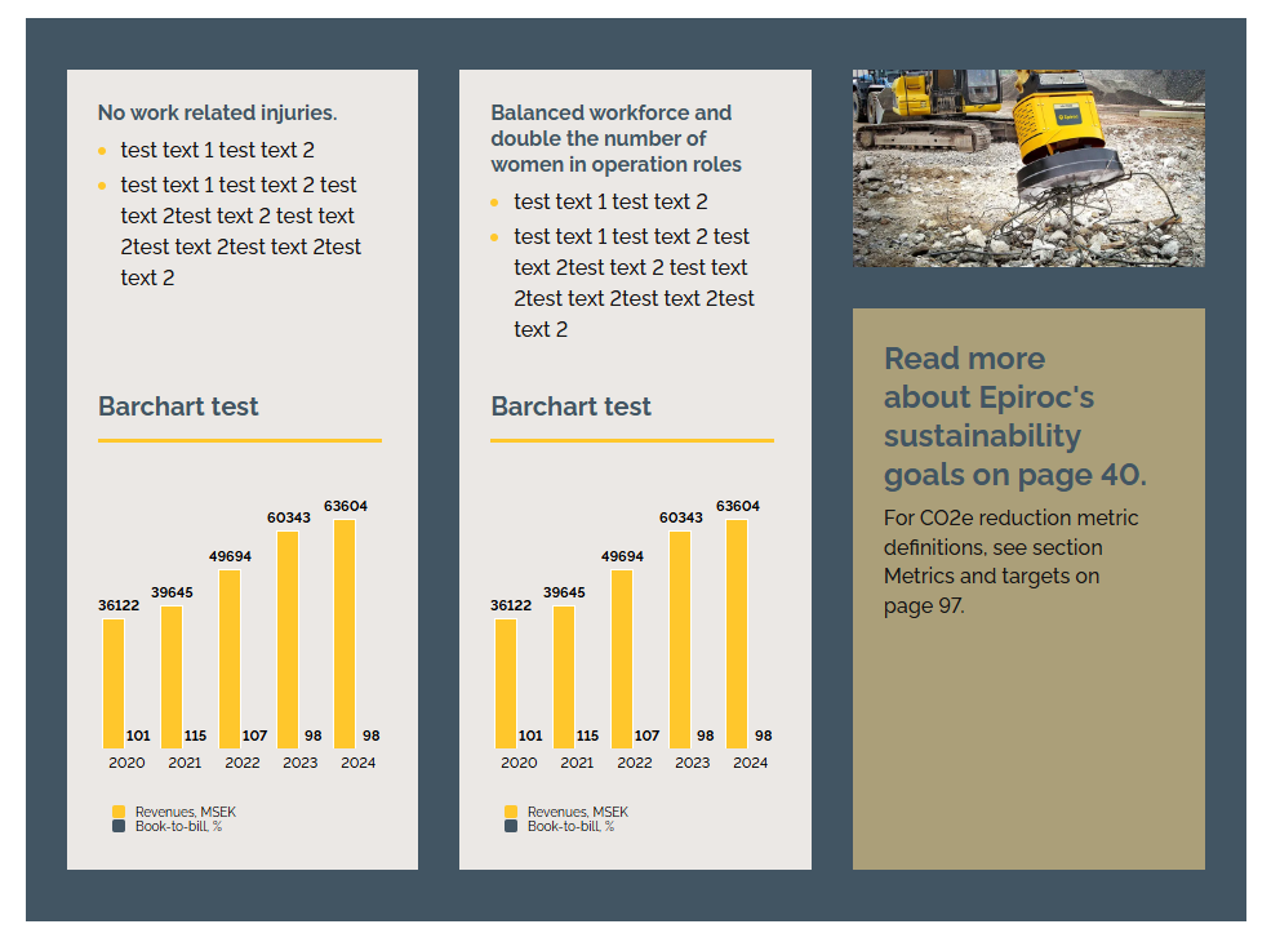
Layouts
Layouts allow to create 2-4 column layouts that are responsive.
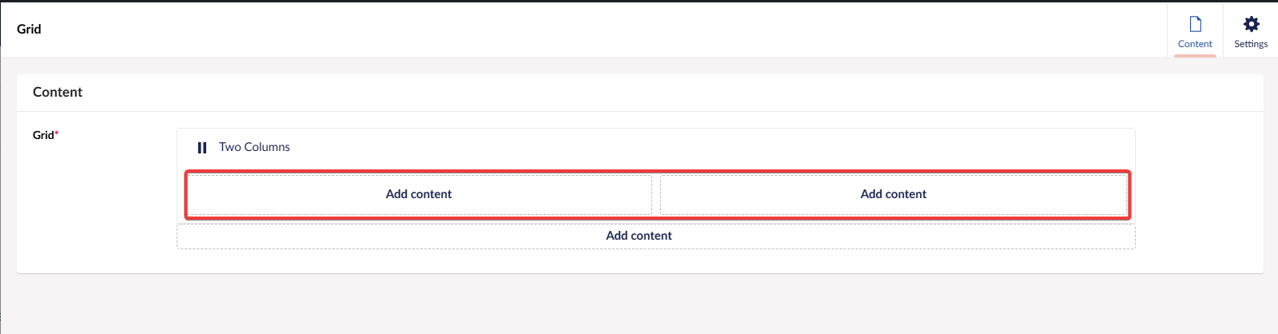
When you insert the one of the layouts, you will have area for each column, to add content click on "Add content" within the column area.
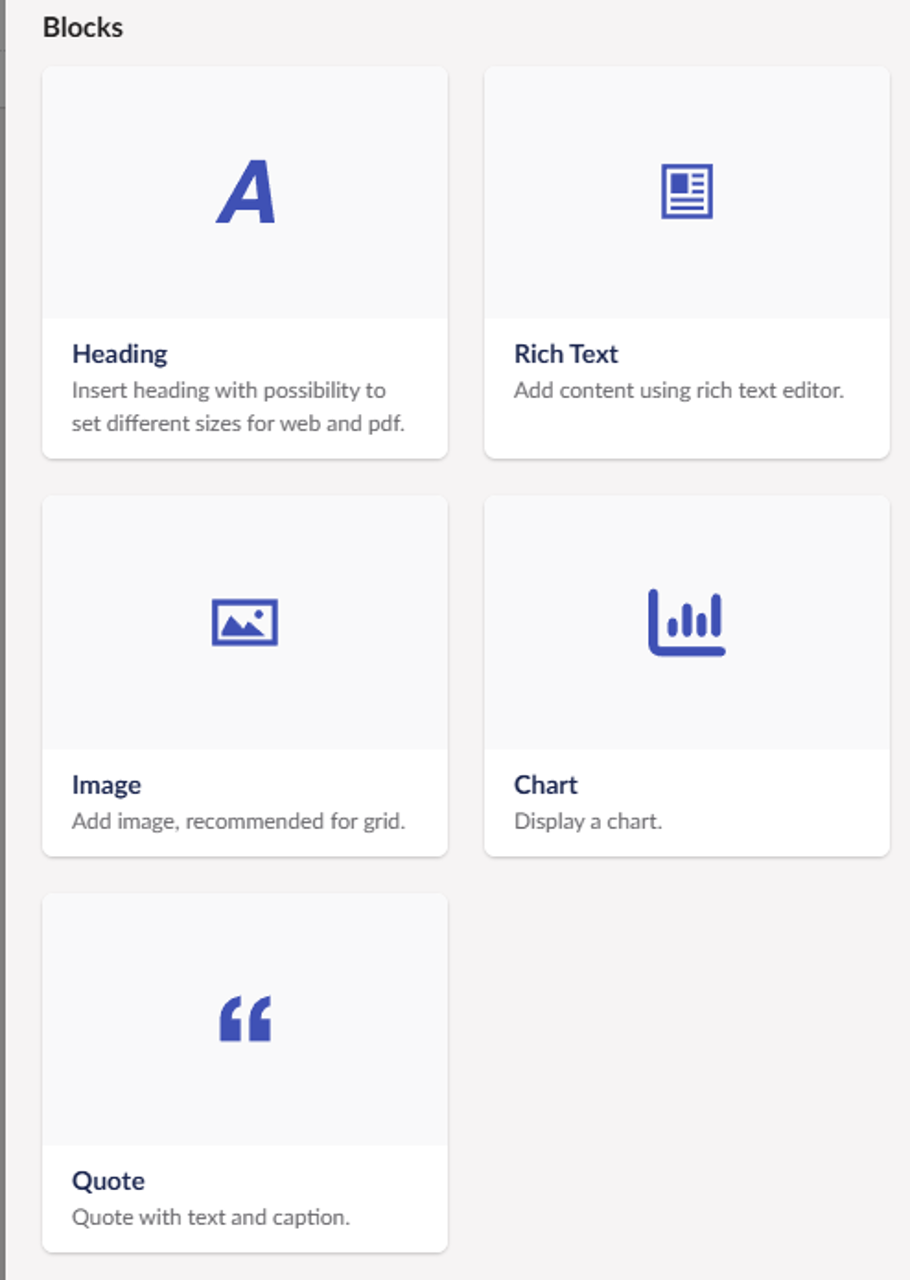
Upon clicking "Add content" it will open similar list of blocks that can be placed within column layouts.
When you add block, you can add more blocks either at the top or the bottom of the column, simply hover over on top of any block and click when plus sign circle appears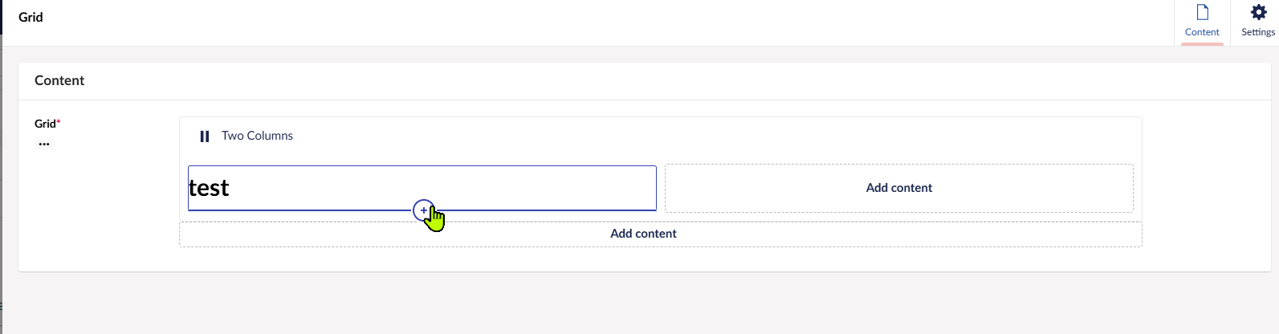
You can also drag the inserted items, simple hold the left click of the mouse and drag to the area or position you want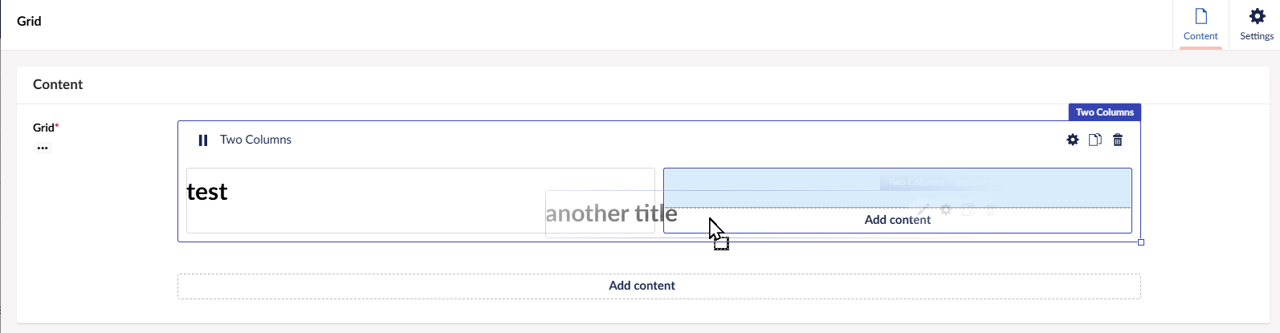
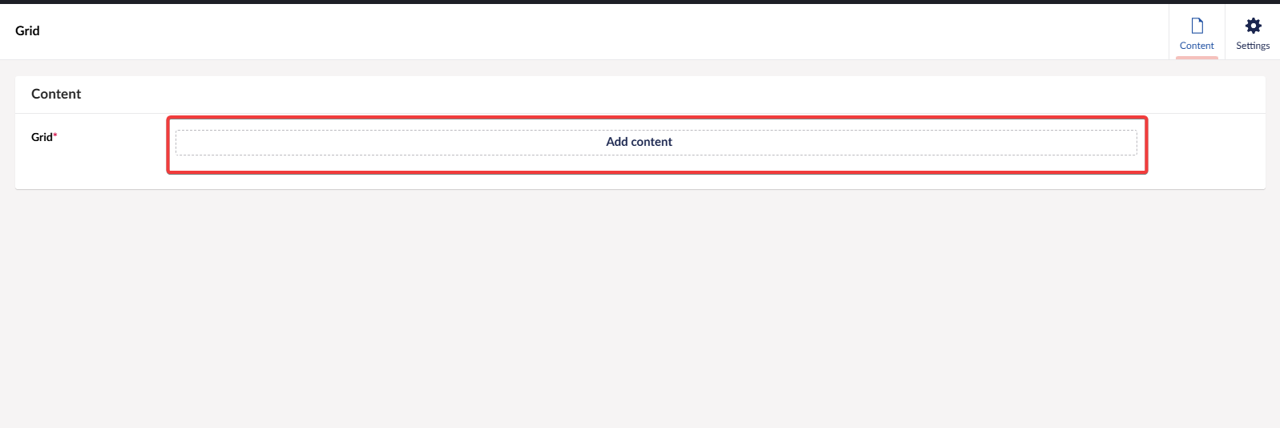
1 column layout
If you want to have 1 column layout you just need to add content in the root of the grid.
Resizing
It's possible to resize some of the blocks, it can be useful when you don't want to block to expand to maximum width, for example you can set rich text block to 3/4 of maximum width, to resize simply hover over the block and at the bottom right corner resize icon will appear if it's possible to resize respective block and then just simple drag it to left or to right to control the width.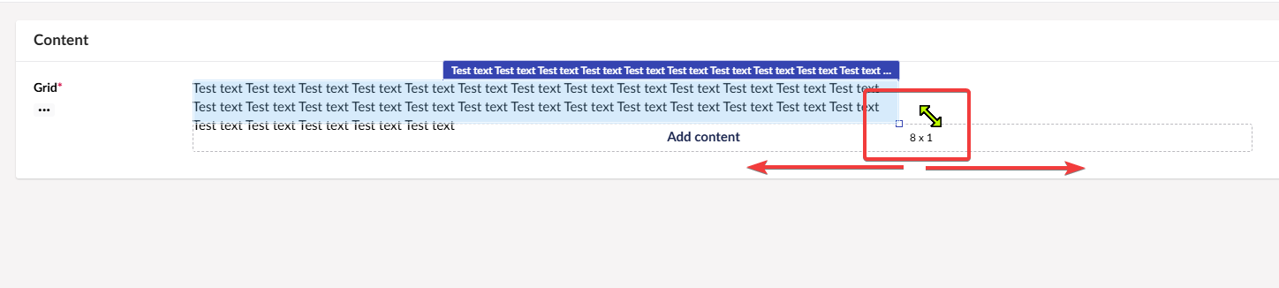
Settings
Some layouts have settings where you can adjust things more.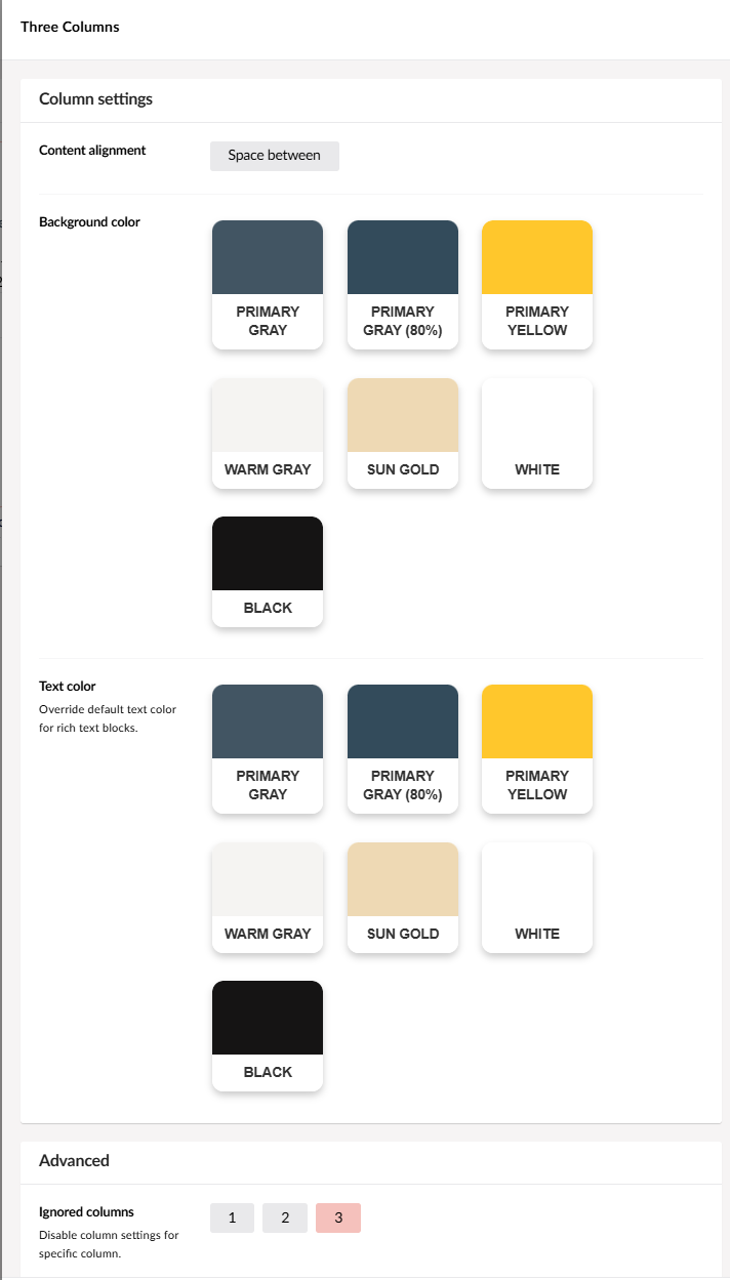
Content alignment - currently only option is to enable "Space between" which means that blocks will be pushed in around so that space between them will be equal, this might be useful if you have 2 blocks per column and you want to have same alignment for top and bottom blocks.
Background color - same as for other blocks, it sets background color for the whole column, it can be easier to maintain if you set it on layout level.
Text color - similar as background color, it will set same text color for all of the blocks in columns.
Advanced: Ignored column - for complex layouts you might want to exclude forced background color for one of the columns, for example here 3rd column has it's own background color set on block level: