Grid
Grid block allows for more complex layout structure, for example it's great for creating 2-4 column layouts that will be responsive and will collapse to 1 column on mobile.
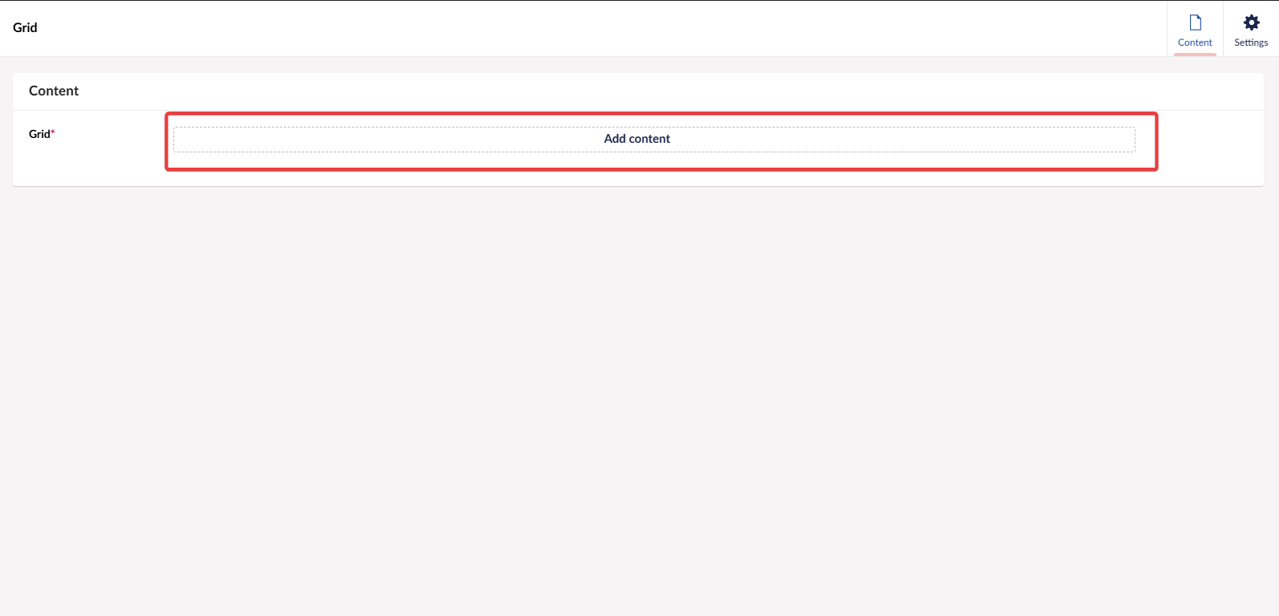
To insert content (blocks) in the grid press "Add content"
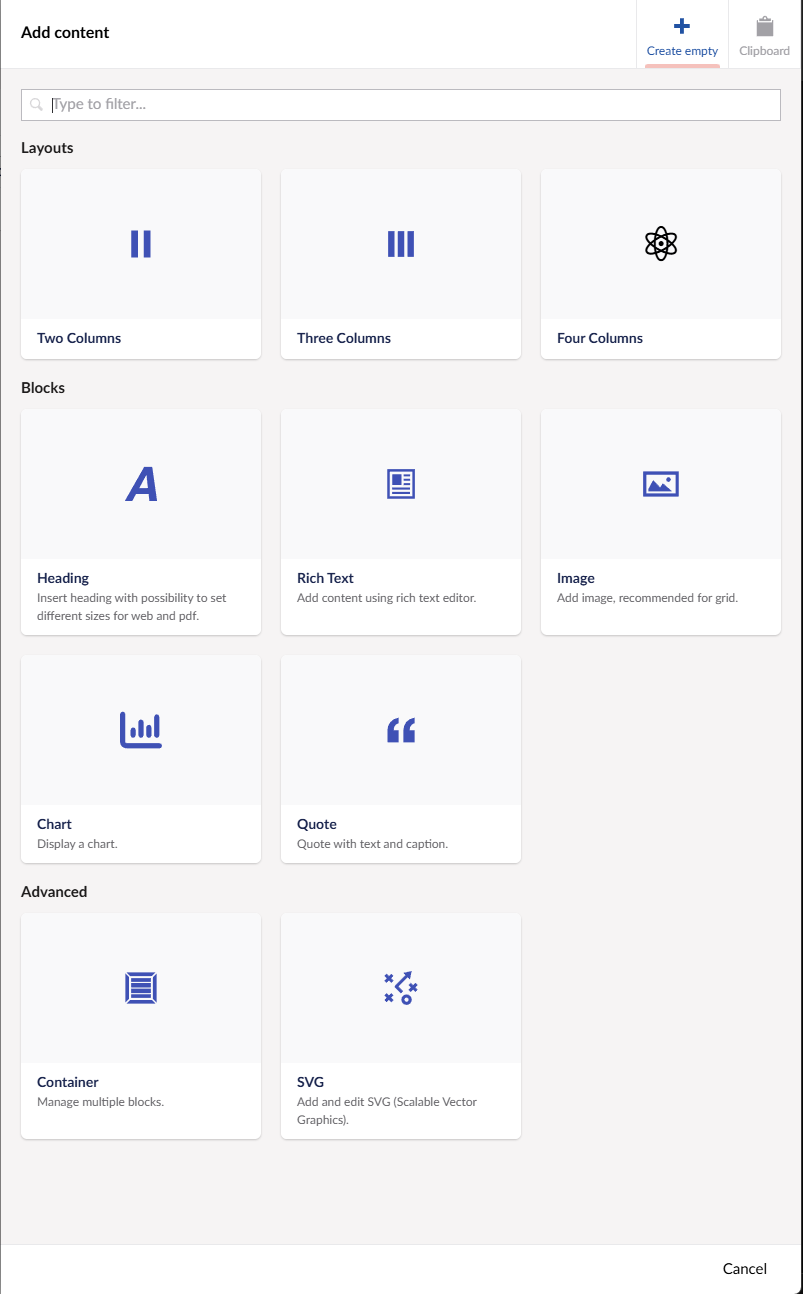
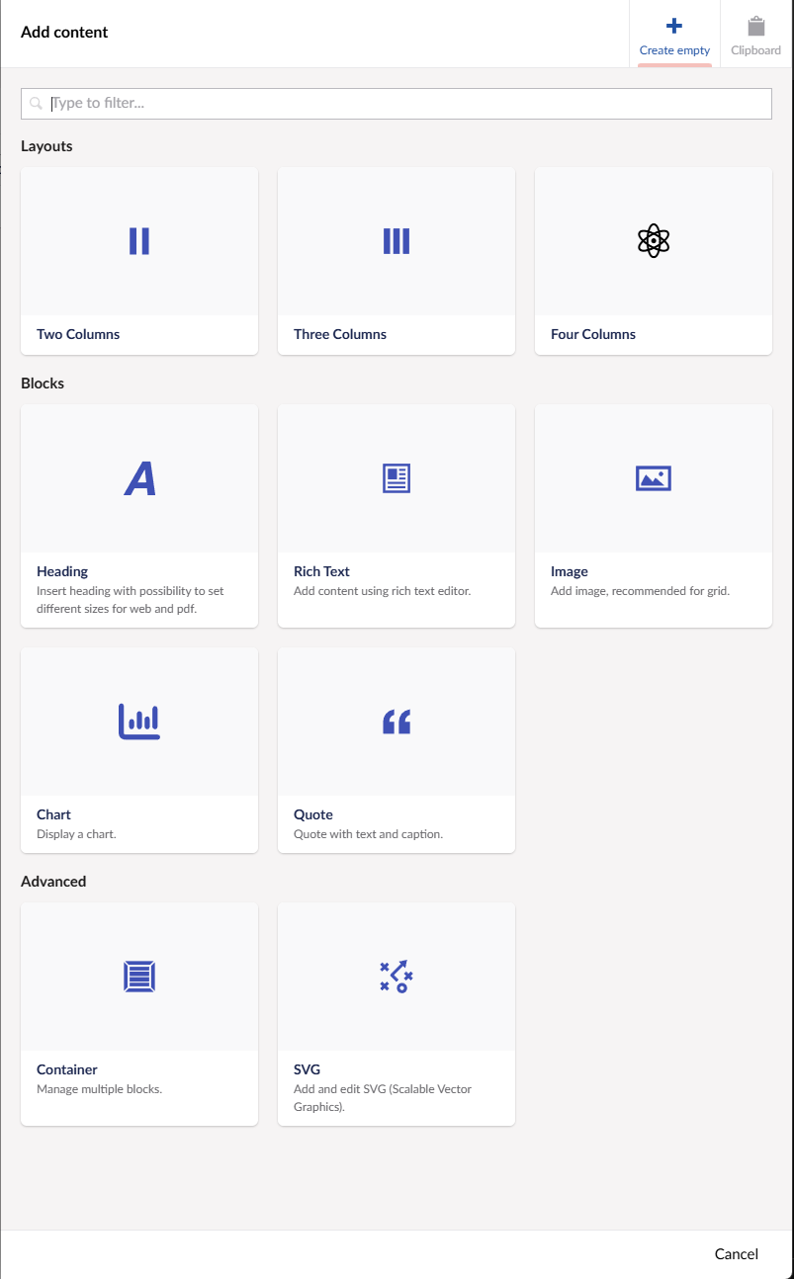
That will open similar block list as for rich text blocks, some of the blocks work the same way, the ones that are unique for grid will be explained in detail under grid section.
Settings
Grid block has also settings, you can set background color or image, it will be applied to whole grid block background.
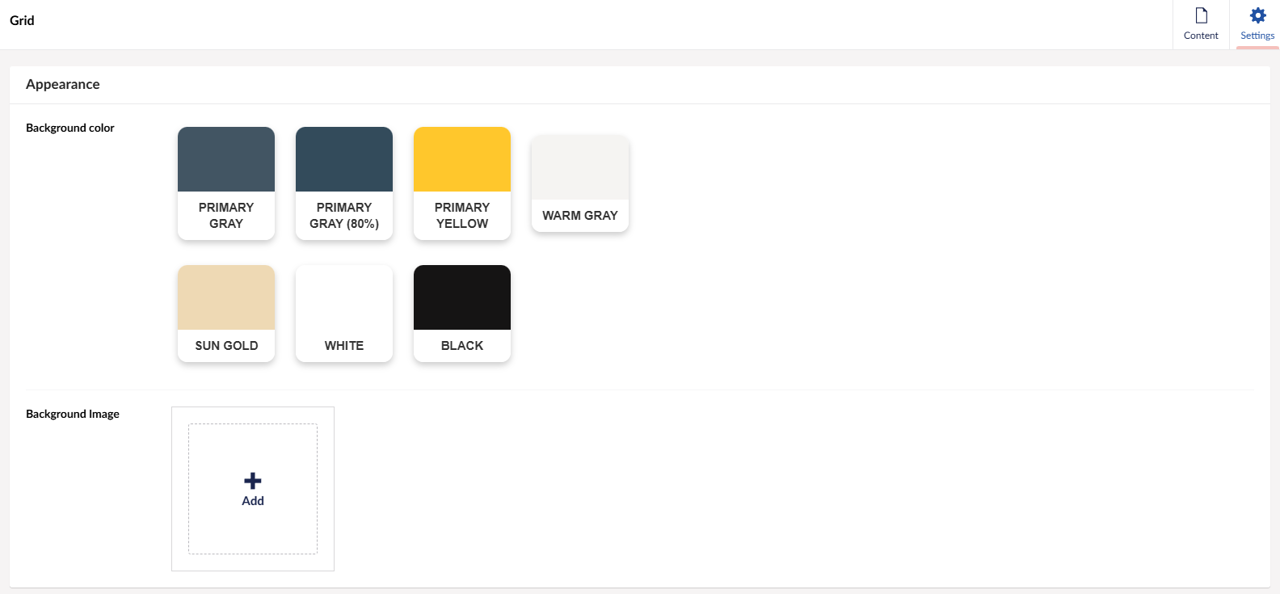
Grid block settings
Each block within the grid has settings that are same for most of the blocks, they control the space within the grid. Background color - simply just background color of the block, if you want to have same background colors for all columns - use background color setting in layout settings.
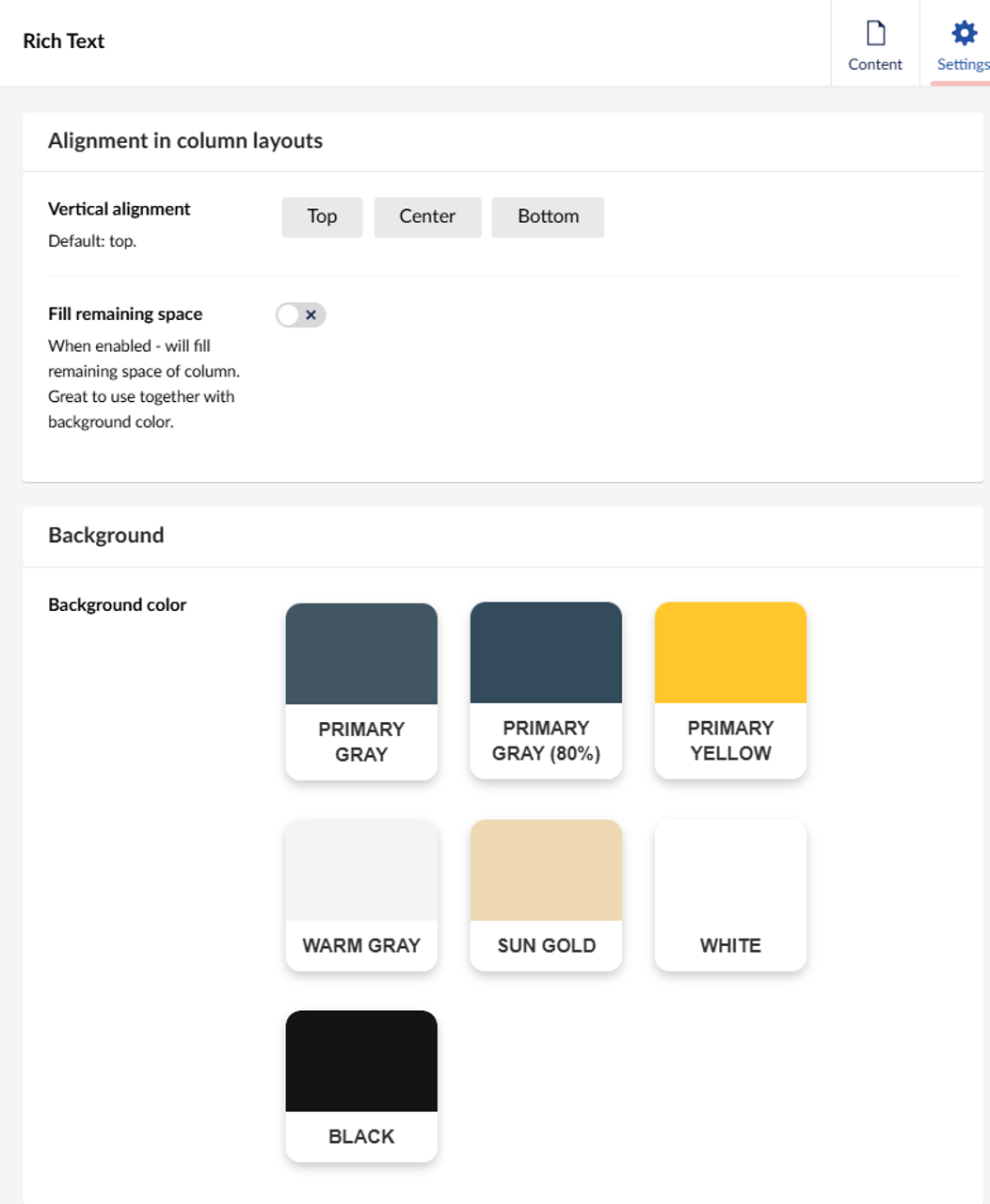
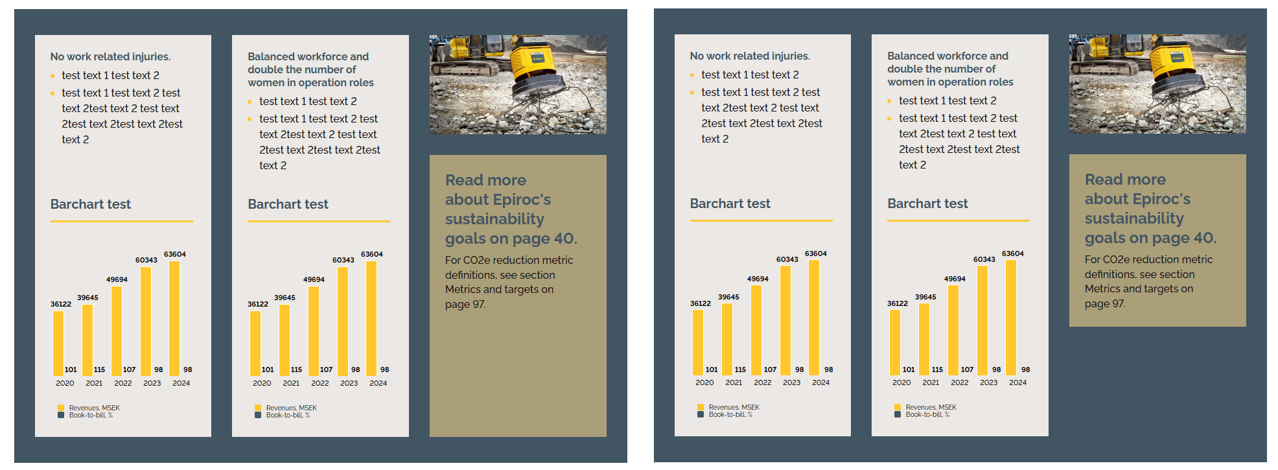
Vertical alignment - you can align the block in the column, it can be useful if you have different height columns and you want to push content in same line. For example in the 1st column the chart is aligned higher than in the 2nd column because of the text length above, we can set the alignment for that chart to "Bottom" to push it down: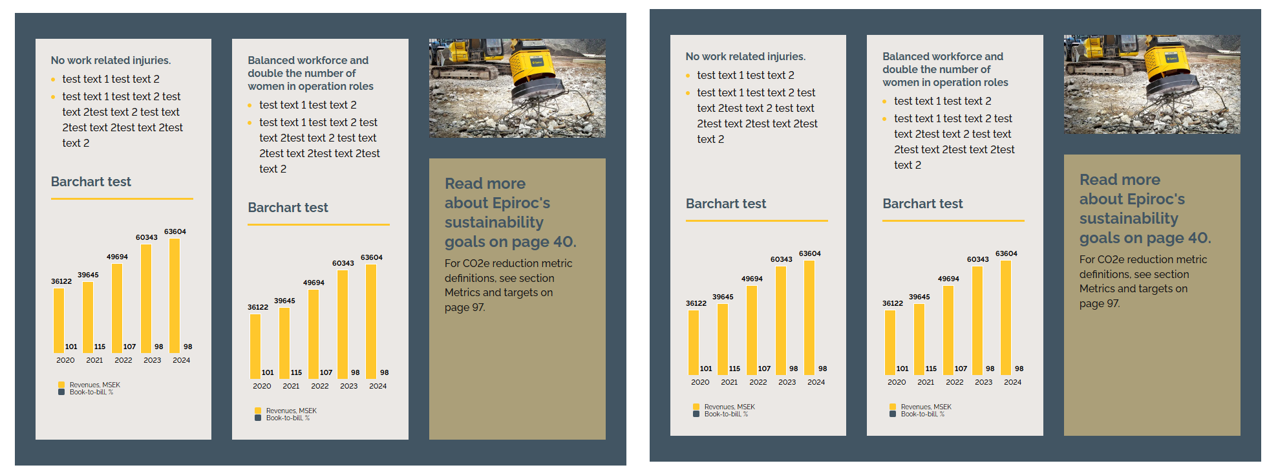
Fill remaining space - is also useful in multi column layout when you have different height columns and you want a specific block to expand to maximum height of the column. For example here the "Read more about..." rich text block would look better if it had same height as the other columns, after and before: