Create graph node
1) Create the graph object under the desired page in content
a) Go to the desired page in Content, i.e. the page where the graph should be located. Right-click, select "Create".
b) Name the graph, then select the desired type of graph from the drop-down menu, press ok.
c) Access the item you just created. Press "Choose" next to the data, and browse to the correct Excel file in the media library.
d) Save and publish.
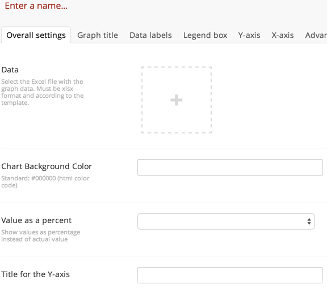
Now you have created the graph object in content and linked it to the media library. The next step is to decide where it will be located.
2) Insert graph macro: Decide where in the text the graph should be located
a) Now go to content, and the page where the graph should be.
b) Place the cursor at the place in the text where the graph should be located.
c) Press the "Insert macro" button

d) In the box that appears, select the type of macro, in this case Dynamic Graph. Press ok.
e) Press "Add", scroll to the graph object in the content you just created, and mark it. Press ok. Now the graph is inserted where you have stood in the text.
(No settings need to be adjusted in this mode. Size, colors etc are preset but can be adjusted here in a later mode if needed.)
Save and publish.