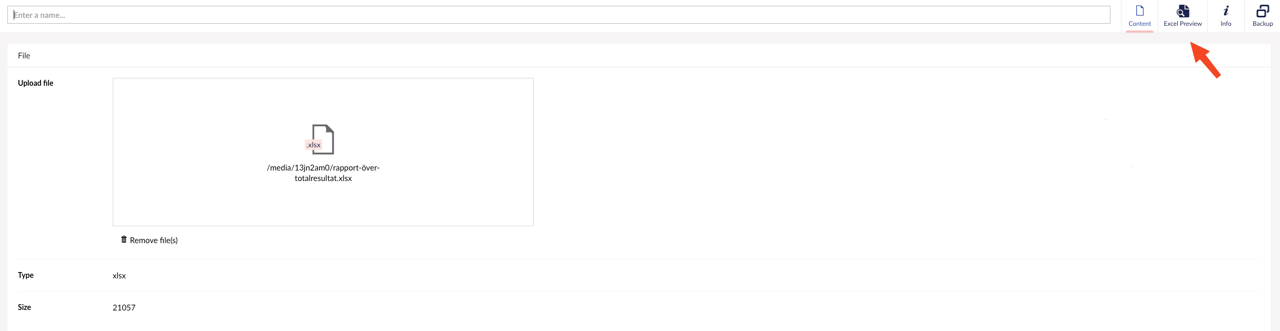
To update an existing Excel table
A. Download the Excel file from which the table draws data
-
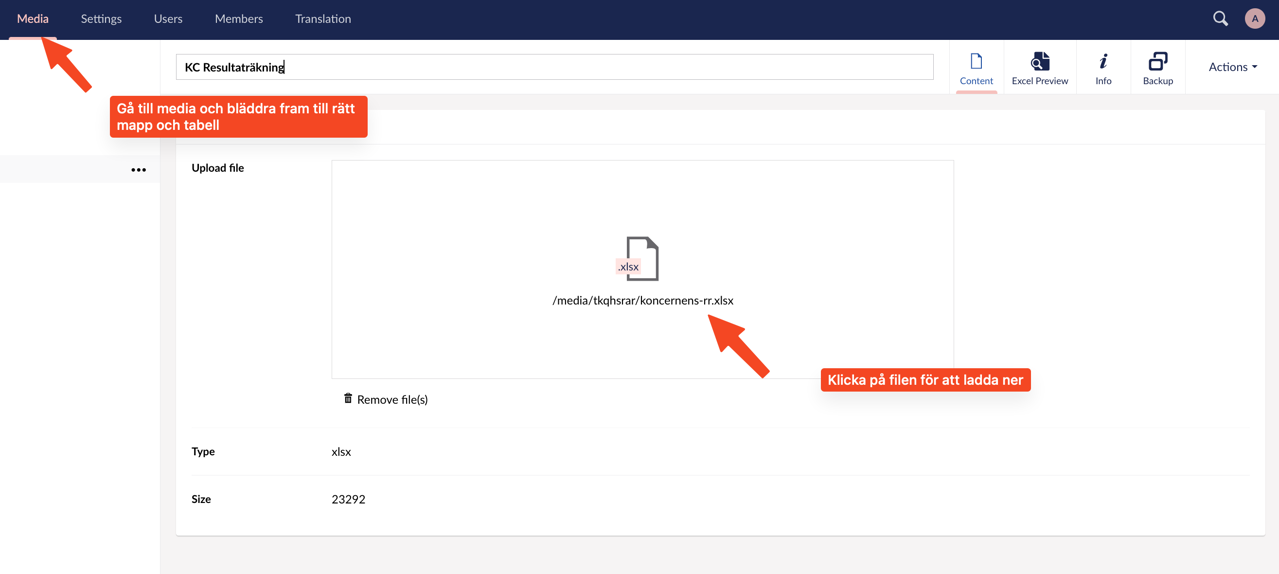
Log in to Umbraco and go to Media (the media library, see the "Navigating Umbraco" section).
-
Navigate to the table you want to update.
-
Click the download icon to download the file. Save the file in a suitable location on your computer, for example in the "Downloads" folder.
B. Edit the table in Excel
-
Open the Excel file and make the desired changes. Save the file. If you need to adjust the formatting of the table, see the instructions in the previous section.
Some tips:
- Since the English tab reads numbers from the Swedish, you only need to change numbers in one place.
- If you add a row to the table, make sure you add it to all tabs!
3. Upload the modified file
IMPORTANT: Make sure you are in the correct location in the media library before uploading the edited file. This is to avoid accidentally saving over another file.
4. Click on "Choose file" and locate the Excel file that you have edited.
5. Save the file! Now the file is uploaded and the table should have updated automatically. However, it is important to preview to check that everything is as it should be.
C. Preview Excel files
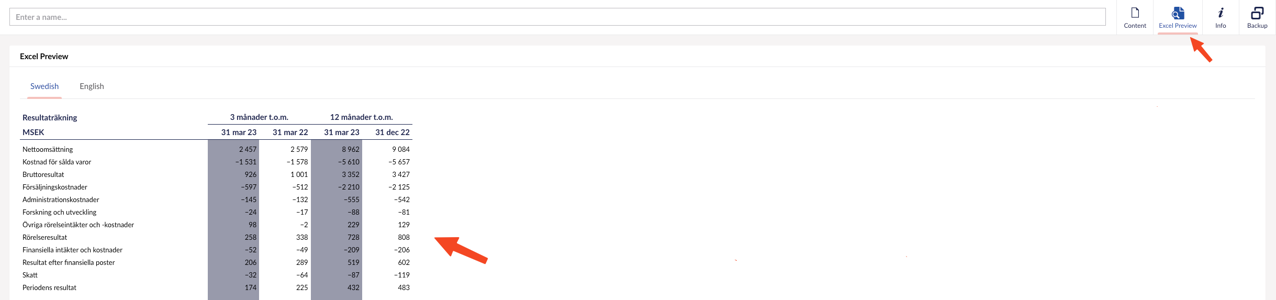
Once a new file has been uploaded, the table can be previewed.
- Upload and select Excel file.
2. Click "Excel preview" in the upper right corner to preview.