Adding a table to Content
Follow these steps to add a table to Content:
-
Go to the "Content" section (see the "Navigating Umbraco" section) to get to the editing mode.
-
Navigate to the page in the page structure where you want to place the table. Select the desired location.
-
Click in the content field where you want the table.
-
Press the "Insert macro" button.
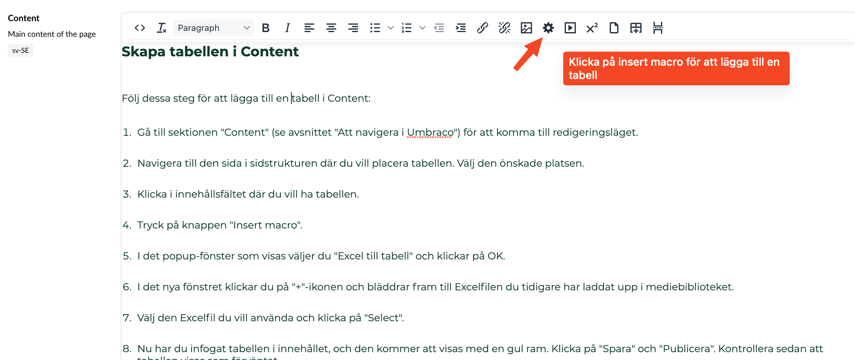
-
In the pop-up window that appears, select "Excel to Table" and click OK.
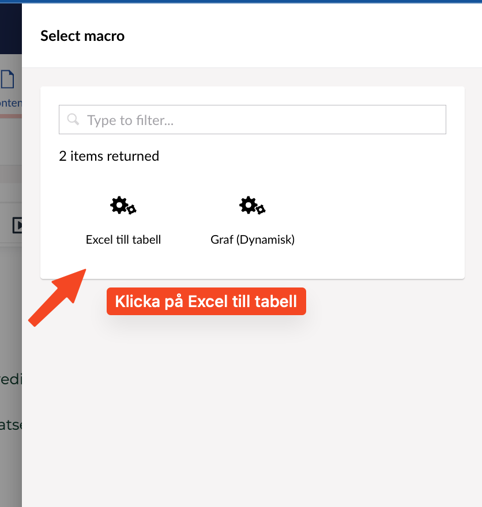
-
In the new window, click the "+" icon and browse to the Excel file you previously uploaded to the media library.
-
Select the Excel file you want to use and click "Select".
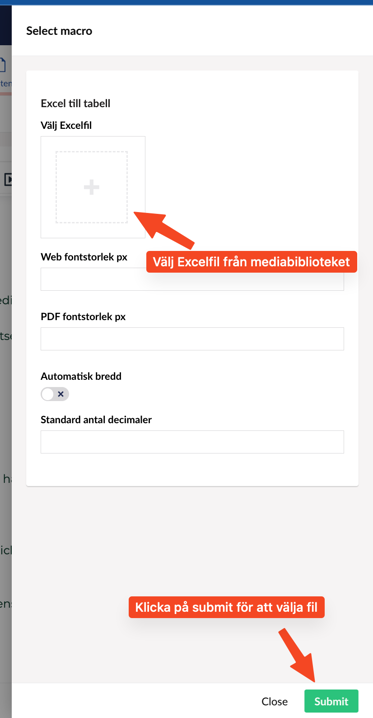
8. Now you have inserted the table into the content, and it will appear with a bright red frame. Click "Save" and "Publish". Then verify that the table appears as expected.
NOTE: In Content, the table will be displayed in English, even if you are in the Swedish content field. It will still look correct both on the web and in the pdf version.