Edit content
Edit text on an existing page
To edit the content of an existing page in edit mode, follow these steps:

-
Navigate to "Content".
-
Click your way to the page you want to edit in the content panel's tree structure. Click on the page header to select it. If the page has subpages, click the small triangle arrow in front of the page header to display the subpages.
-
Make the desired changes in the page content field on the right. You can change text, add images, tables or other content.
-
When you are happy with the changes, click "Save and Replace" to save the changes.
- Click "Preview" to see a preview of how the page will look on the website. Select the desired language version (Swedish or English) to open the page in a new tab. If this is the first time you are previewing, you may be required to log in again with the same login details as for Onlinereports.
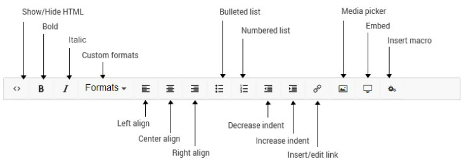
Overview Editor buttons in Content
Restore content
By using the rollback feature, you can retain and restore previously saved and published content if needed. It gives you flexibility and the ability to revert to a previous version of the page if needed.
If you need to restore previous versions of pages, you can use the rollback function. Follow these steps:
-
Look for the info icon, usually in the shape of an "i" , and click it.
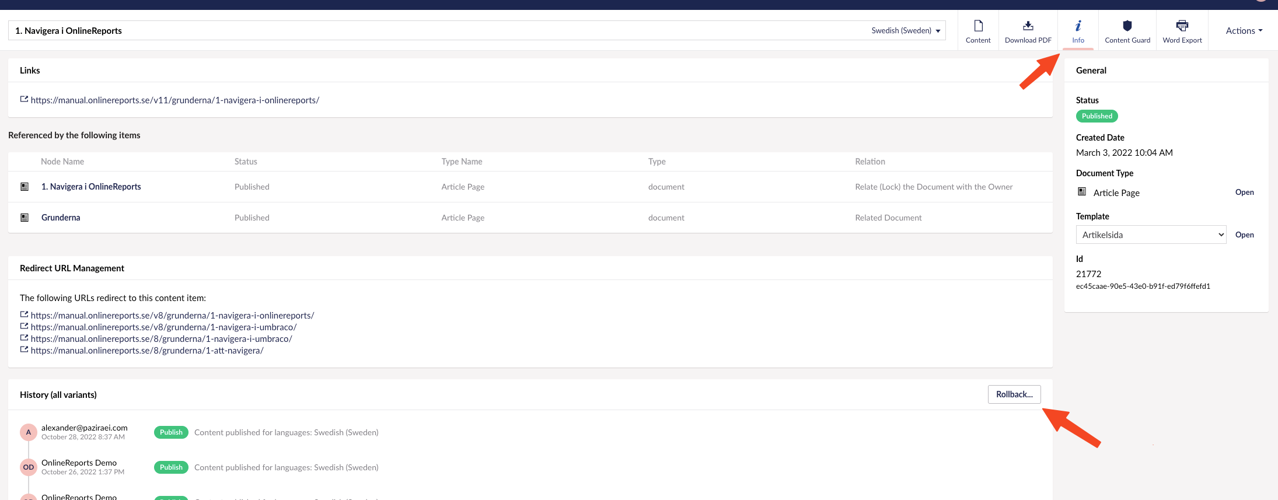
2. Click on "Rollback" in the middle of the page. The resulting box displays the previously saved and published versions of the page.
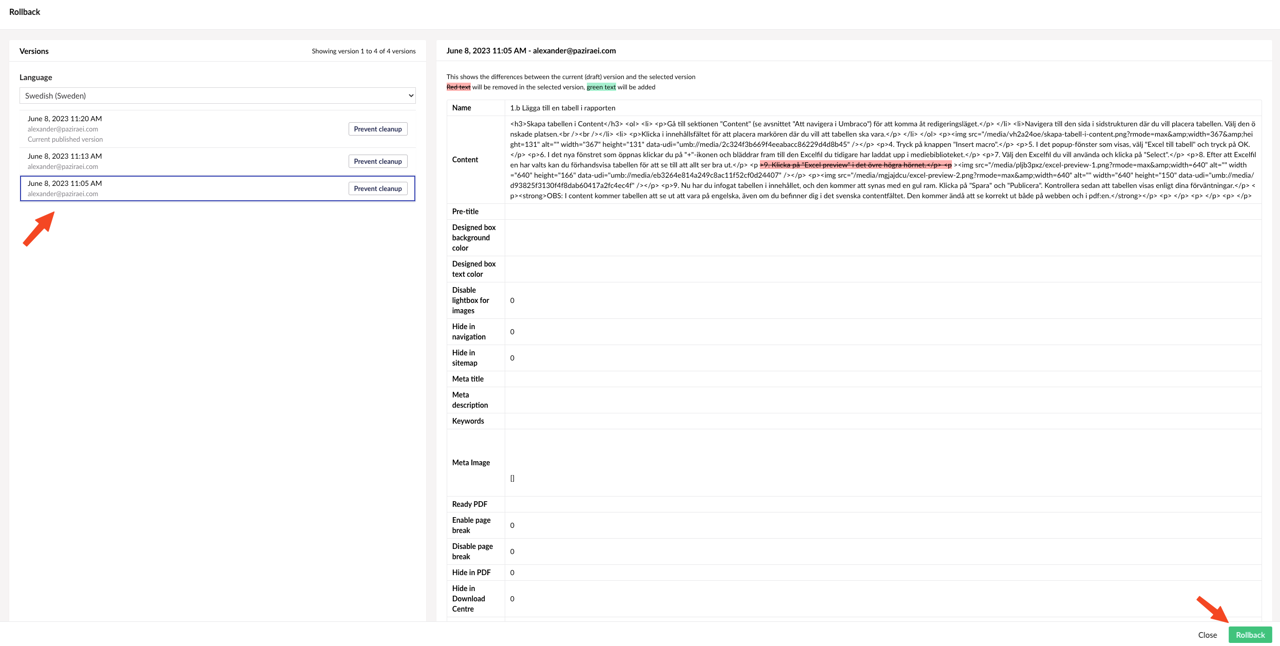
3. Compare the differences. Click on a previous version to compare its content with the current version. You can see the differences between the versions to judge which is the best fit.
4. After selecting the desired previous version, click "Rollback" in the lower right corner to restore the page to the selected version.
Tips
- If pasted text does not behave as expected, you can clear the formatting by first pasting the text into the text editor or using the "Paste Special" function in Word. Then paste the text into the content field and do the desired formatting directly in Umbraco.
- Image captions in the web annual report require you to add the text to the image using an image editing program. The auto-contiguous caption feature is not currently available. (Note that captions for clickable images in the right margin are available as a feature.)