Manage the content structure
Create, save and publish a page
-
Go to Content Navigate to "Content".
-
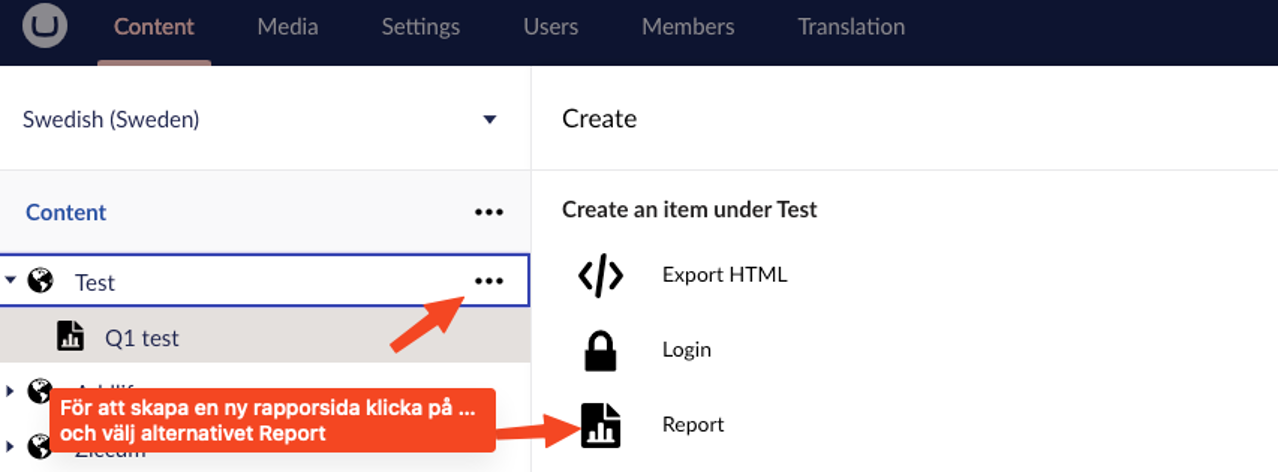
Select the correct location for the new page hover over the header of the page where the new page should be located. Click the three dots next to the title, then select "Create" from the context menu. You have several different page types to choose from:
- Report: Create a new report by hovering over the customer page and then create pages below the report to build the tree structure.
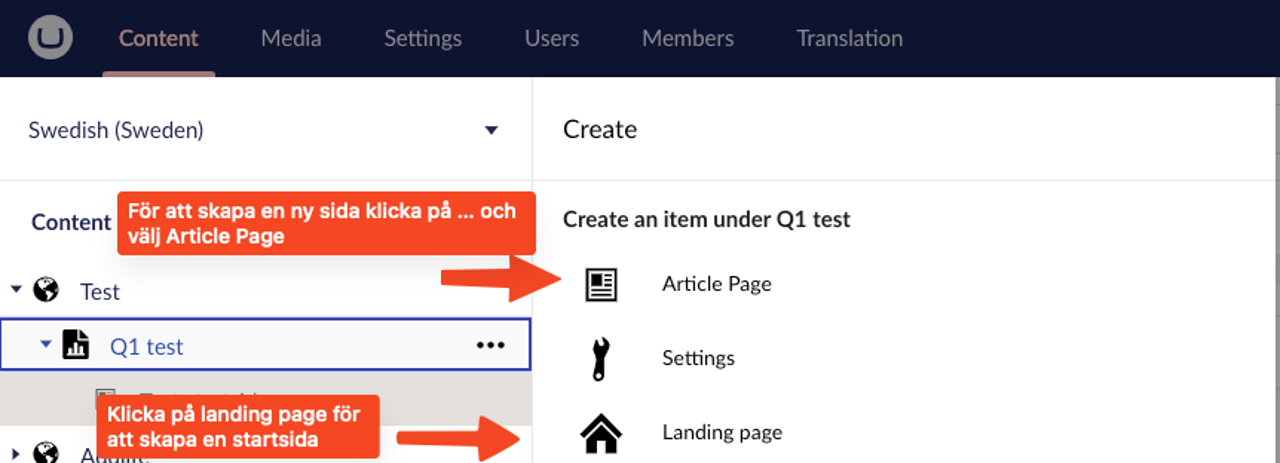
- Home page: Post a home page below the report. There is only one home page per report.
- Article Page: Use this page primarily to build your OnlineReport during the report.
- Dynamic graph: Post this page below the page where you want a dynamic graph. The graph must also be posted as a macro in the text field. There are different types of graphs to choose from, such as pie graphs, area graphs, bar graphs, line graphs, etc. (More detailed instructions are provided later in the document.)
- Note main page: First create a "Note main page" and then a "Note page" under the "Note main page" folder. Note that notes are not article pages.
- Board member: Post this page below the page where you present the board or management. A separate page is needed for each board member. For everything to work correctly, you need to link an image from the media library to the board member page.
-
Add content to the page Fill the page with content, such as text, images or tables. (See respective sections for more information.)
-
Save and Publish Page When you are happy with the changes, click "Save and Publish" to save and publish the page.
-
Preview the page Click "Preview" to see a preview of how the page will look on the website. Select the desired language version (Swedish or English) to open the page in a new tab. If this is the first time you are previewing, you may be required to log in again with the same login details as for Onlinereports.
Change page order
The pages in OnlineReports are sorted according to the system's standard. Usually the most recently created page ends up at the bottom of the tree structure. You can easily change the page order of the content pages by using the sort function:
-
Right-click the parent page (main folder) that contains the pages you want to sort.
-
Select "Sort" in the menu that appears after right-clicking.
-
Drag and drop the pages into the desired order. You can also click on the "Name" or "Creation date" headings to sort the pages alphabetically or by creation date. If you click again on the column header, the pages will be sorted in reverse order.
-
Click "Save" to save the new changes to the page order.
Move a page
You can move pages between different parts of the page structure by using the move function.
-
Right-click the page in the page structure that you want to move.
-
Select "Move" from the options that appear after the right click.
-
Select the parent page (folder) where you want to place the page under.
-
Click "OK" to confirm the move of the page to the selected parent page.