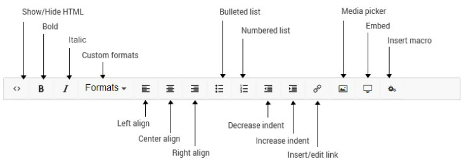
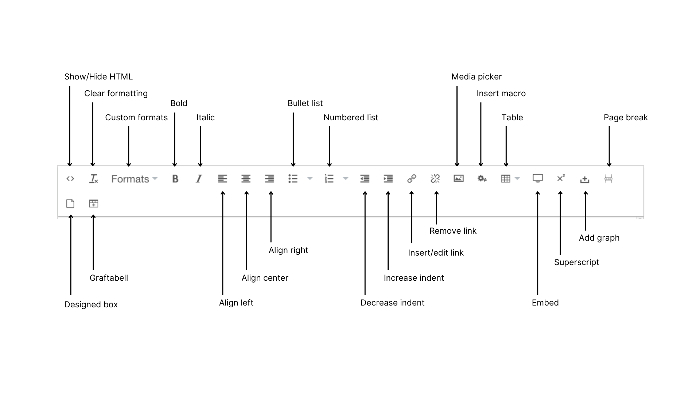
Logga in, navigate edit content in OnlineReports
Login
To log in to Onlinereports, use the link provided, the username and password provided by your contact person. Usually the link is: reports.customername.com/umbraco.
Editor Interface
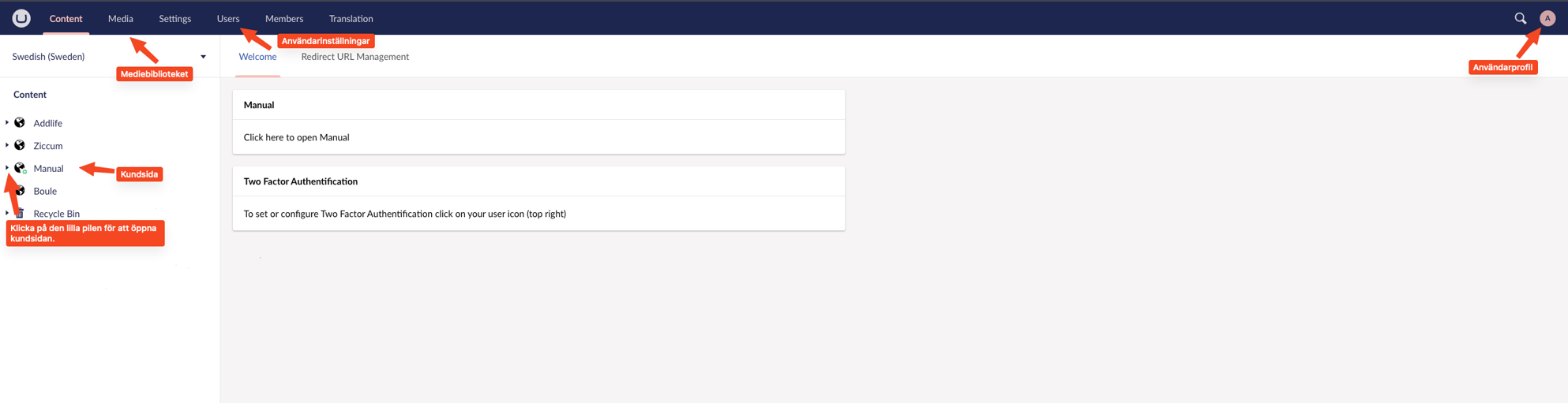
After logging into edit mode, the following content is displayed in the browser. At the top there is a menu where you will find various functions.
 The main functions used are
"Content" is the space in which you create and edit your content.
"Media" is a database upload excelfiles, documents and images.

"Content panel"
On the left side of the window is the content panel, which displays the site's content as a tree structure.
Here you find all the reports you have access to. The right side of the window shows either the current page or (as below) the home page in edit mode.
Media:
The media library acts as the website's hard drive, where you can upload any files used on the website, such as images, PDFs, Excel files or movies.
Content :
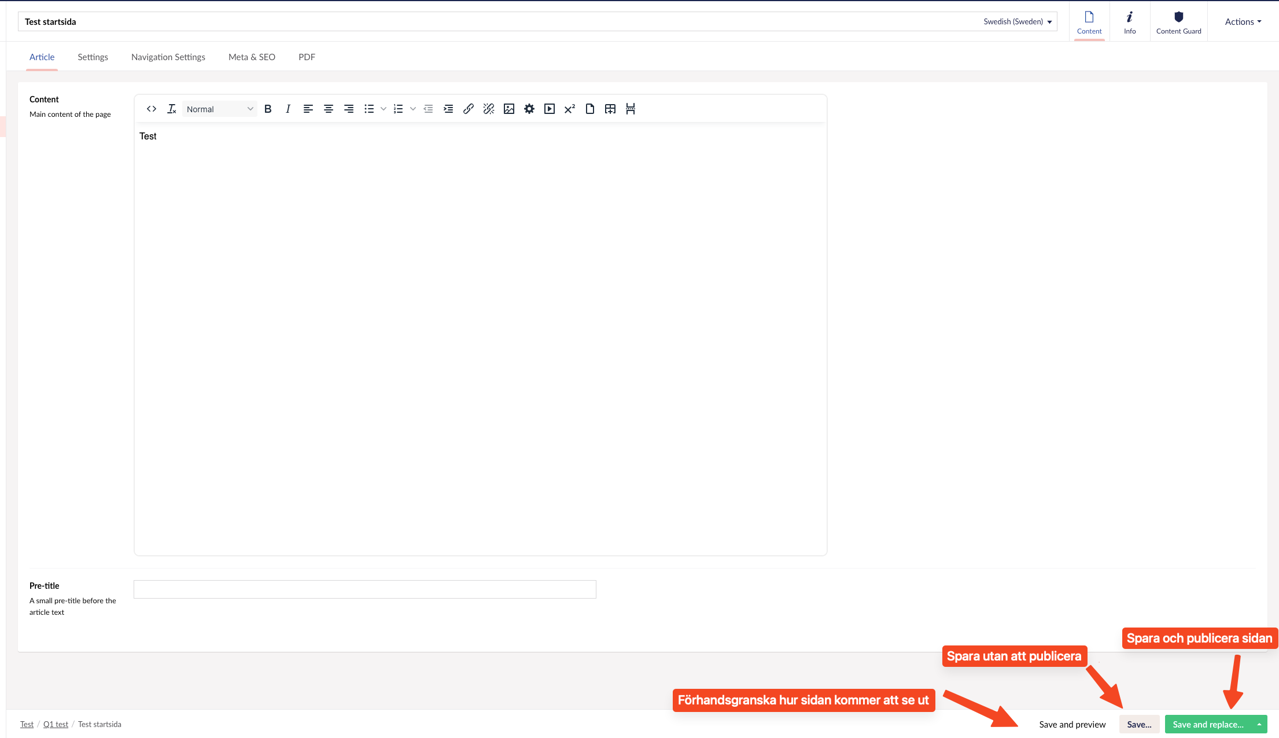
In "Content" you manage the website's content. Here you add text and links to images, PDF files, Excel files or movies that have been uploaded to the media library.
Preview :
Pressing "Preview" will open the preview box where you can select the language version you want to see. Click on the desired link to open a new tab in the browser and see how the web page will look.
If your report is password protected, you will need to log in again. Enter your username (email address) and password, the same as for entering Onlinereports.
Overview Editor buttons in Content