Manual

  • sv-se
  • Basics
    Basics
    • 1. Navigation OnlineReports
    • 2. Content structure
    • 3. Content
    • 4. Media
    • 5. Change page order
    • 6. Move a page
    • 7. Manage images
    • 8. Notes
  • Excel
    Excel
    • 1a. Create and format the Excel file
    • 1b. Adding a table to Content
    • 2. To update an existing Excel table
    • 3. Troubleshooting tables
    • 4. Backup for excel files
  • Graphs
    Graphs
    • 1. Creating a graph from scratch
    • 1a. Create graph node
    • 2. Update an existing graph
    • Advanced 2a. Check label format
    • Example of Graphs
  • PDF
    PDF
    • 1. To adjust page breaks
    • 2. Upload PDF front and back
  • Last step
    Last step
    • 1. Before publishing: Check the landing page
    • 2. Before publishing: Upload finished pdf documents
    • 3. Make the page visible to the public
    • 4. Update navigation and lock the report
  • Advanced
    Advanced
    • Export the entire report to Word
    • Graphs: Remove 0's from the X-axis
    • Hide page headers in PDF or Web
    • Hide glossary in PDF
    • Links in tables
    • Admin
      • Create new report from existing
    • Column Width Decimal
    • Troubleshooting - Unable to add text under Macro
    • Reduce size of PDF
    • Mega menu adjustments
    • Clickable images
  • Rich Text Blocks
    Rich Text Blocks
    • Heading
    • Grid
      • Layouts
      • Rich text block
      • Advanced: Container
    • Quote
    • Excel table
    • Chart
    • SVG
    • Image
    • Info block

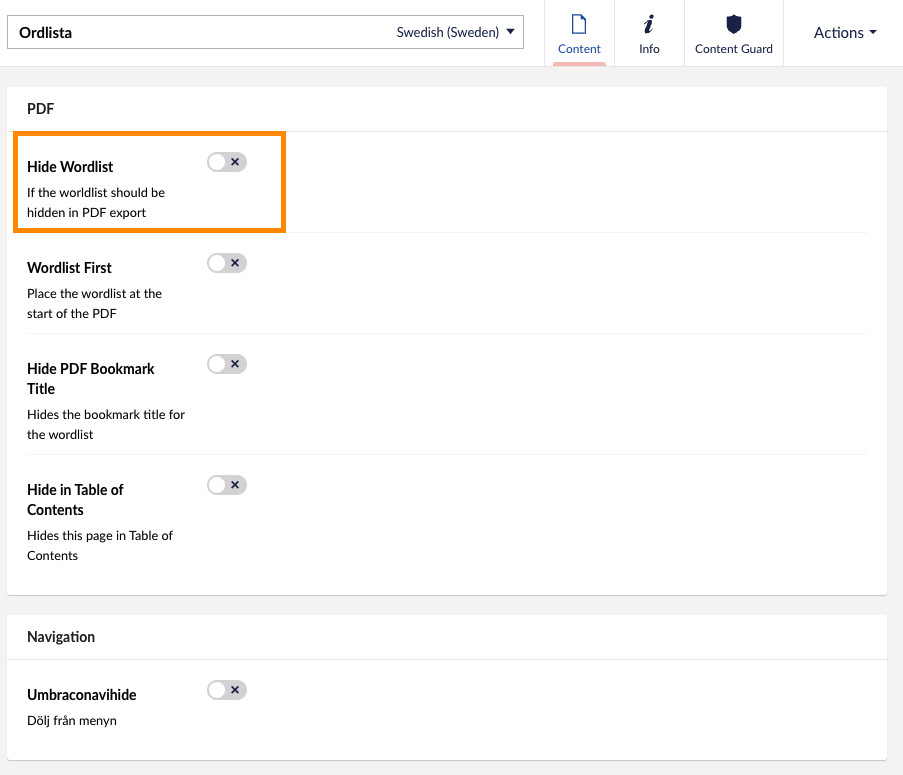
Hide glossary in PDF

Navigate to Features

Latest updated: 11/13/2024 2:30:53 PM by claudia.iuvara@oxkom.se
NEXT
Advanced

  • Export the entire report to Word
  • Graphs: Remove 0's from the X-axis
  • Hide page headers in PDF or Web
  • Hide glossary in PDF
  • Links in tables
  • Admin
  • Column Width Decimal
  • Troubleshooting - Unable to add text under Macro
  • Reduce size of PDF
  • Mega menu adjustments
  • Clickable images
  • Print page
  • Download page
  • Download whole section