Create new report from existing
An administrator can create a new report. Usually, the report is based on the previous quarter so that the latest changes are included.
Rename the report in Content + Media and also lock the report.
After the report is created, the administrator should double check that Excel tables and graph links have been correctly updated. Otherwise, all of these need to be updated manually.
- Navigate to Settings
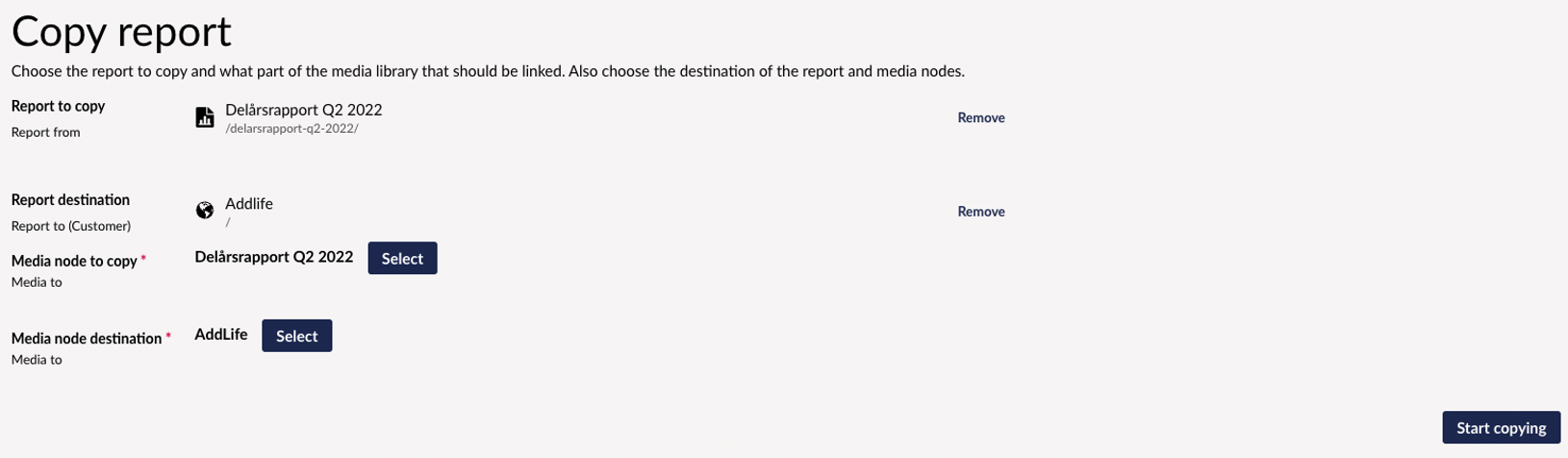
- Then select Copy Report
- In Copy Report, you must then select which report to copy. For example, Interim report Q2 2022. Select the report level.
- Then you must select Report Destination and then the destination must be at the customer level, for example Addlife.
- Then Medianode should be copied. Select the same node as the report called Interim Report Q2 2022.
- Then the destination must be selected and then the customer level is selected in the media archive , Addlife.
- Navigate to Content and Media. Rename the report and the media folder to the next quarter. NOTE: The report and the media folder must have the same name in Swedish . Then don't forget to update the English report.
- Lock the report. This is done at report level in Content via Restrict Public Access. If the media node has the wrong name, it will not be unlocked and a warning box will appear.
- Sort the order of the report in content and media so that the report is at the top.
- Check that previous reports are locked. Check both content and media . This is done via the " Close Report " function.
- Remove fixed PDFs from the new report. Note: don't forget that there are always two languages.
- Right-click on the report and publish with descendants. Include unpublished content items. As well as both languages if the report is made in several languages.
- Check CSS and links.
- Notify the customer that the reports have been set up.
Latest updated: 11/13/2024 2:33:12 PM by claudia.iuvara@oxkom.se